



Applications are the lifeblood of an organization. Getting them to the employee, maintaining them and the ability to resolve issues is of the utmost importance. Microsoft Intune’s capabilities, combined with the power of Autopilot ensure that apps are installed when the device is first enrolled. There are regular check-ins of the machine in the enrolment phase, making sure those apps get to the endpoint rather efficiently. However, after that period, the process slows down. So, when an application is updated, how long does it actually take for that application to reach the endpoint?

Why Intune delivery speed can become a bottleneck
With Intune’s dependency on endpoints checking in with the control plane, delivery times can vary from hours to days. Organizations need to ask themselves if these delivery times are acceptable – personally, I think it shouldn’t be. Imagine having a security risk within an application. You would want this resolved as quickly as possible. But also, when applications have new features which lead to improve employee productivity: wouldn’t you want them to have this instantly?
Packaging complexity and operational overhead
Delivery speed isn’t the only challenge. Applications need to be wrapped in an .intunewin file format and often require detection logic to make sure the application isn’t already installed and to check if the application is installed correctly when done. All extra work and a small error in this process can can cause Intune to retry the installation in a loop until it ultimately fails. This is exactly where Liquidware can help.
Introducing FlexApp: application portability explained
FlexApp is a way to deliver applications, separate from the Operating System. Apps aren’t installed on the device, they are layered on top of Windows. So, to the employee (and the operating system) it seems as though the application is installed like any other app; files can be found C:\Program Files, it’s found in the registry under HKLM and even services show up and behave exactly as they would when installed normally. However, this installation is done once, after which all the changes are recorded into a FlexApp. This is a virtual hard disk that is delivered over the network and attaches to the Windows Session.
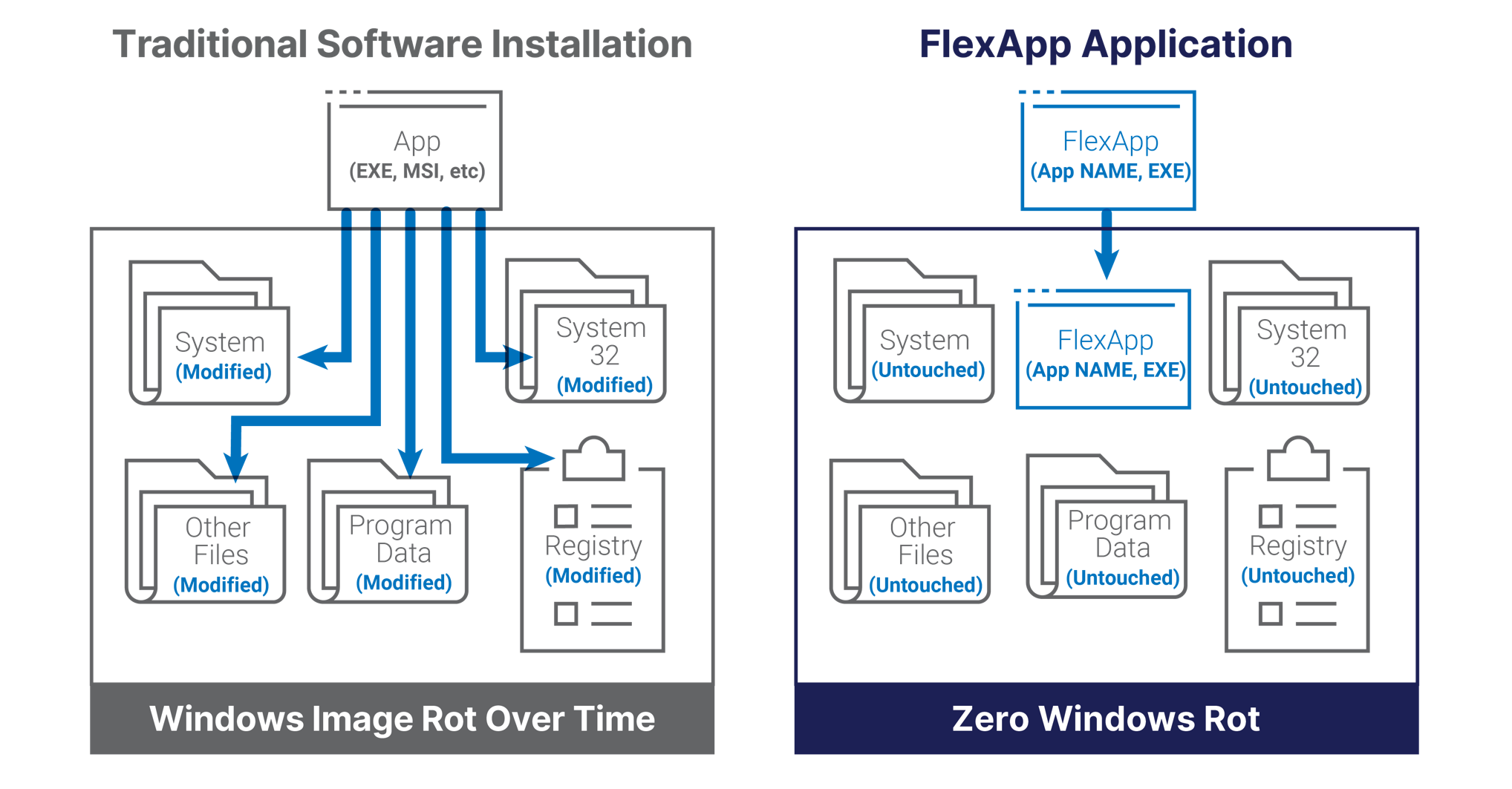
FlexApp supports almost any type of installation. MSI and executables are of course easy, but FlexApp can also deal with multiple installers – even if they need to be run in a specific order. Or maybe your application is installed from a script or requires manual file copies. Maybe it requires DCOM, Services or specific DLL’s? FlexApp can handle it all and makes them easily editable as well. Updating an application is as easy as duplicating the FlexApp for version history, attaching it to your packaging machine and performing the update. When done, seal it back up and deliver it out to the endpoint. And this delivery is where FlexApp can make the biggest difference.
Rethinking application delivery
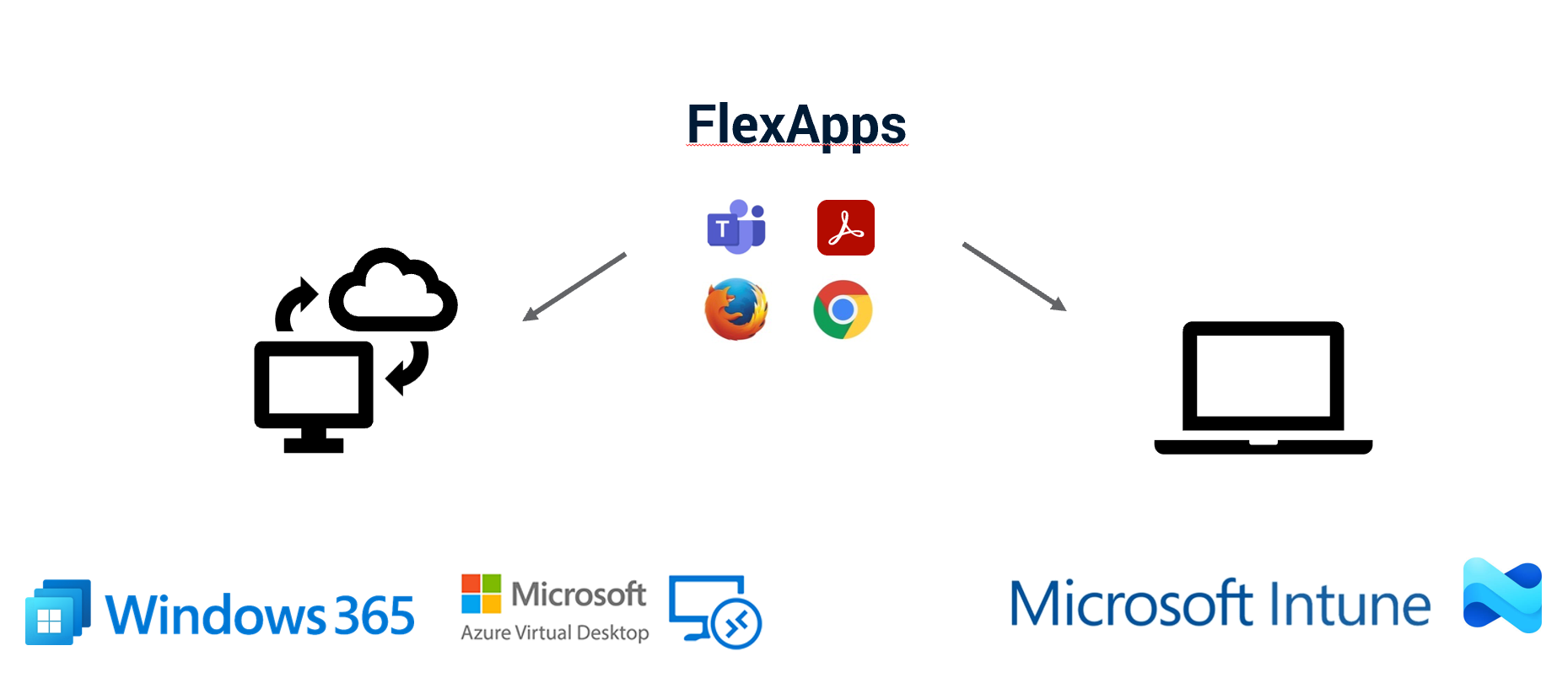
FlexApps can be created as FlexApp One – meaning that everything it needs to run is stored inside a single executable, ready to deploy. This executable can be delivered natively through Intune and be made available in the company portal for employees to download manually. However, when administrators push the application out through Intune, the question of when in the timeframe of 1 to 48 hours the app arrives returns.
A better way to do this, is to upload the FlexApps to a file storage solution in the cloud like Azure Blob storage. The FlexApp agent on the endpoint will check with this repository at logon or whenever a refresh is initialized. Meaning that assigning an application leads to that application getting delivered instantly!
Real-world example: resolving application issues instantly
Imagine running into an issue with an application, like recently when a Teams update caused CPU spikes, leading to degraded performance for employees. Uninstalling the updated Teams application and delivering the previous version through Intune will cause a lot of headaches – both for IT and the employee. If you are using FlexApp however, it’s resolved easily and swiftly by unassigning the updated version and assigning the previous version. Employees would refresh their environment or log their device off and log back in to continue their day productively.